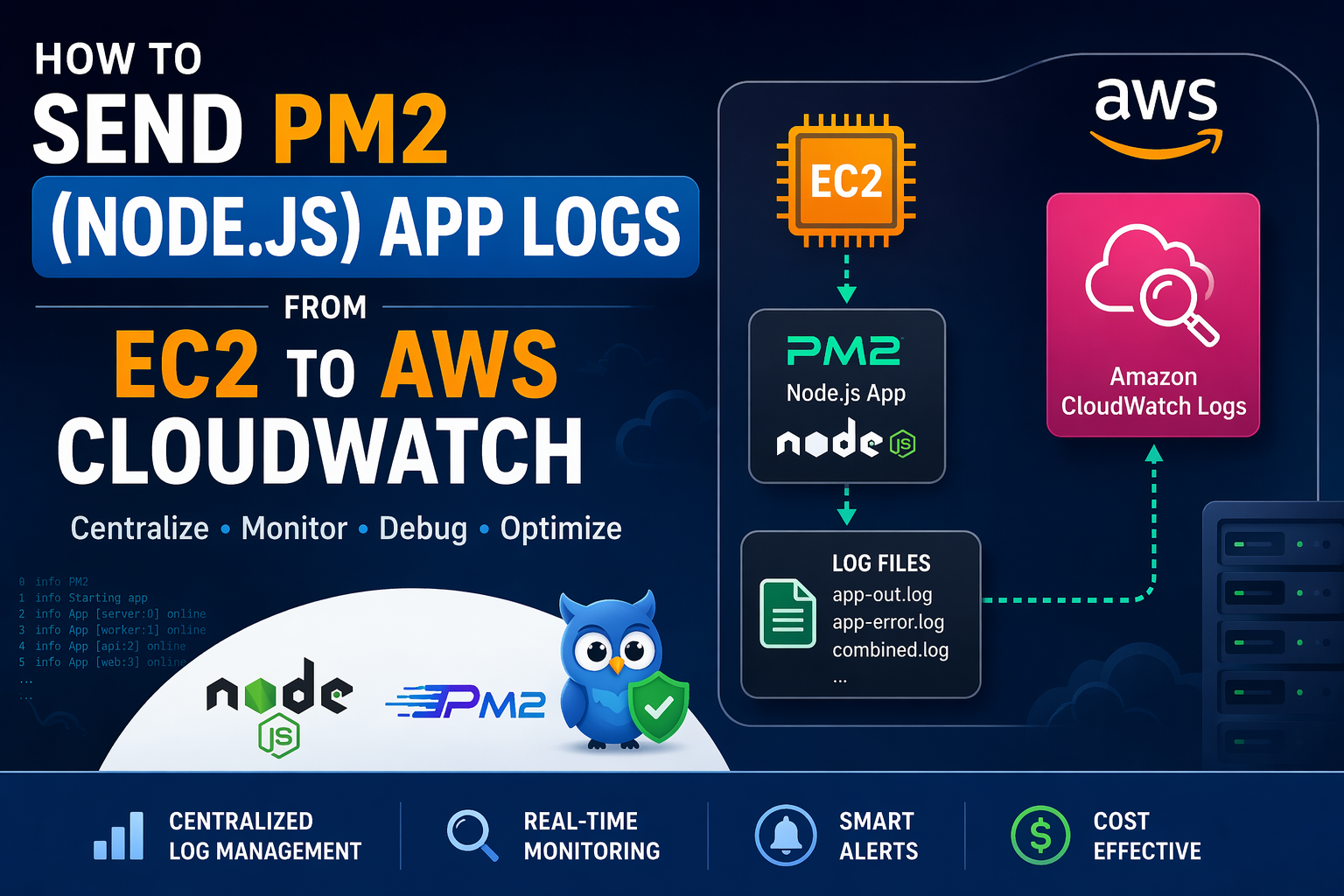
If you’re running a Node.js application on an EC2 instance using PM2, one of the most important production requirements is centralized logging.
By default, PM2 stores logs locally on the server:
/home/ubuntu/.pm2/logsThis can quickly lead to:
- Disk space issues 🚨
- Difficult debugging across environments
- No centralized visibility
In this guide, I’ll show you step-by-step how to send PM2 logs to AWS CloudWatch Logs.
🚀 Prerequisites
Before we begin, make sure:
- Your Node.js app is running via PM2
- You have access to your EC2 instance
- IAM role is attached to EC2 with CloudWatch permissions
🔹 STEP 1: Install CloudWatch Agent (Ubuntu EC2)
The default apt install method may not work on EC2 Ubuntu, so use the official package:
For x86-64 systems:
wget https://amazoncloudwatch-agent.s3.amazonaws.com/ubuntu/amd64/latest/amazon-cloudwatch-agent.debFor ARM64 systems:
wget https://amazoncloudwatch-agent.s3.amazonaws.com/ubuntu/arm64/latest/amazon-cloudwatch-agent.debInstall the agent:
sudo dpkg -i -E ./amazon-cloudwatch-agent.deb🔹 STEP 2: Attach IAM Role to EC2
Attach a role with the following policy:
Recommended:
CloudWatchAgentServerPolicyOr minimal permissions:
{
  "Effect": "Allow",
  "Action": [
    "logs:CreateLogGroup",
    "logs:CreateLogStream",
    "logs:PutLogEvents"
  ],
  "Resource": "*"
}
🔹 STEP 3: Verify PM2 Log Path
Check your PM2 logs:
ls /home/ubuntu/.pm2/logsTypical files:
app-out.log
app-error.log
🔹 STEP 4: Configure CloudWatch Agent
Edit the configuration file:
sudo nano /opt/aws/amazon-cloudwatch-agent/bin/config.json🔹 STEP 5: Add PM2 Log Configuration
Basic configuration (all PM2 logs):
{
  "agent": {
    "run_as_user": "root",
    "region": "us-east-2"
  },
  "logs": {
    "logs_collected": {
      "files": {
        "collect_list": [
          {
            "file_path": "/home/ubuntu/.pm2/logs/myapp-*.log",
            "log_group_name": "myapp-logs",
            "log_stream_name": "{instance_id}-myapp",
            "retention_in_days": 7
          }
        ]
      }
    }
  },
  "metrics": {
    "metrics_collected": {
      "cpu": {
        "measurement": [],
        "metrics_collection_interval": 600
      }
    }
  }
}
Production-style (separate log groups per service):
{
  "file_path": "/home/ubuntu/.pm2/logs/myapp-prod*",
  "log_group_name": "myapp-prod",
  "log_stream_name": "{instance_id}"
},
{
  "file_path": "/home/ubuntu/.pm2/logs/myapp-stage*",
  "log_group_name": "myapp-stage",
  "log_stream_name": "{instance_id}"
}
Once the configuration file is created, run the following command to start it.
sudo /opt/aws/amazon-cloudwatch-agent/bin/amazon-cloudwatch-agent-ctl -a fetch-config -m ec2 -s -c file:/opt/aws/amazon-cloudwatch-agent/bin/config.json🔹 STEP 6: Start / Restart CloudWatch Agent
sudo systemctl restart amazon-cloudwatch-agentCheck status:
sudo systemctl status amazon-cloudwatch-agent🔹 STEP 7: Verify Logs in AWS Console
Go to:
CloudWatch → Logs → Log GroupsYou should see your log group (e.g., pm2-app-logs).
Click on it → open log stream → 🎉 logs will start appearing.
🔧 Optional (Highly Recommended)
✅ Set Log Retention (Cost Optimization)
By default, logs are stored forever → can increase AWS cost.
Set retention (example: 30 days):
aws logs put-retention-policy \
  --log-group-name pm2-app-logs \
  --retention-in-days 30
✅ Enable PM2 Log Rotation (Prevent Disk Full)
Install log rotation:
sudo -iu ubuntu
pm2 install pm2-logrotate
Recommended config:
pm2 set pm2-logrotate:max_size 100M
pm2 set pm2-logrotate:retain 3
pm2 set pm2-logrotate:compress true
🚨 Troubleshooting
Logs not appearing?
Check agent logs:
sudo tail -f /opt/aws/amazon-cloudwatch-agent/logs/amazon-cloudwatch-agent.logPermission issues?
sudo chmod -R 755 /home/ubuntu/.pm2/logsRestart agent
sudo systemctl restart amazon-cloudwatch-agent🧠 Best Practices
| Component | Purpose |
|---|---|
| PM2 logrotate | Prevent disk overflow |
| CloudWatch Agent | Ship logs |
| CloudWatch retention | Control cost |
✅ Final Outcome
After completing this setup:
- Logs are stored locally (short-term)
- Logs are available in CloudWatch (long-term)
- Easy debugging across environments 🚀
- No more disk space issues 🔥
🎯 Conclusion
Centralized logging is critical for production systems. By integrating PM2 with CloudWatch Logs, you ensure:
- Better observability
- Faster debugging
- Scalable log management