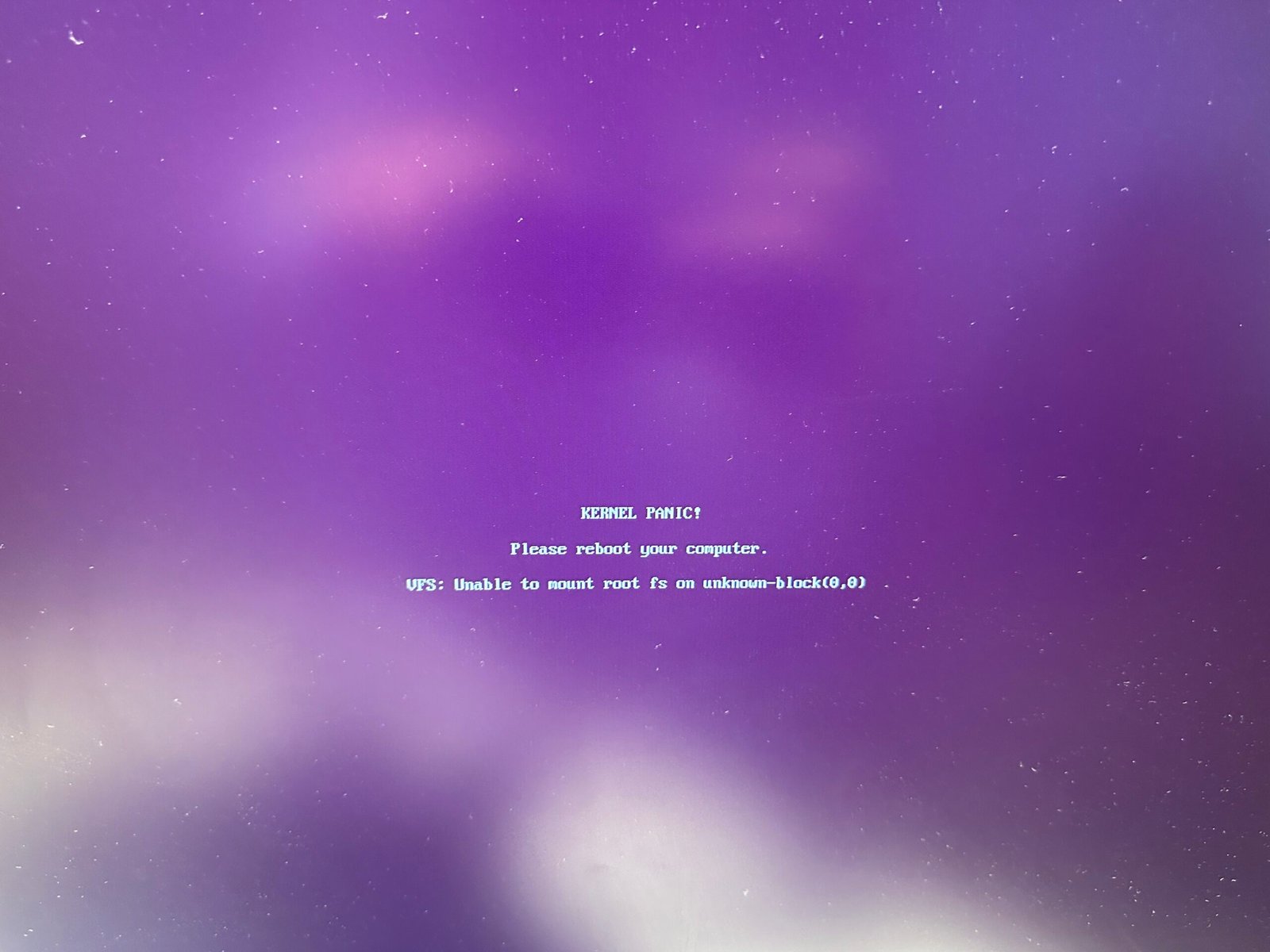
After a routine kernel update on Ubuntu 24.04, my PC refused to boot and dropped straight into a kernel panic. Here is the exact error, the real cause, and the commands that fixed it.
The Error
KERNEL PANIC!
Please reboot your computer.
VFS: Unable to mount root fs on unknown-block(0,0)
What Causes It
unknown-block(0,0) means the kernel has no initramfs, so the storage driver needed to mount your root filesystem never loads.
In my case the kernel package installed fine, but the NVIDIA DKMS module failed to build against the new kernel. That failure killed the post-install script before update-initramfs ran — so /boot got a vmlinuz file with no matching initrd.img.
Other common causes: /boot partition full, or an interrupted apt upgrade.
Step 1: Boot Into the Old Kernel
At the boot screen, choose Advanced options for Ubuntu and select the previous kernel version. If the GRUB menu does not appear, hold Shift or tap Esc during startup.
Step 2: Confirm the Missing initramfs
df -h /boot
ls -l /boot/initrd.img-* /boot/vmlinuz-*
If a vmlinuz-<new-version> exists but the matching initrd.img-<new-version> is missing, that confirms the problem.
Step 3: Find the Real Failure
sudo dpkg --configure -aThis showed the actual error — the NVIDIA driver could not compile against the new kernel:
Autoinstall of module nvidia/580.126.20 for kernel 7.0.0-30-generic (x86_64)
Building module(s)......(bad exit status: 2)
Error! Bad return status for module build
Step 4: Make the System Bootable Immediately
You can generate the initramfs manually. This fixes the kernel panic even before the driver issue is solved.
sudo update-initramfs -c -k 7.0.0-30-generic
sudo update-grub
ls -lh /boot/initrd.img-7.0.0-30-generic
Replace 7.0.0-30-generic with your kernel version. The file should be around 70–80 MB. If -c says the file already exists, use -u instead.
Step 5: Install a Compatible NVIDIA Driver
Older driver branches do not build against newer kernels. Check what is available:
ubuntu-drivers list
lspci -nn | grep -i vga- RTX 20xx / GTX 16xx or newer → use the
-openvariant - GTX 10xx or older → use the standard proprietary package
sudo apt purge '^nvidia-.*580.*'
sudo apt install nvidia-driver-610-open
Step 6: Fix the “trying to overwrite” Error
The install may stop with a file conflict:
dpkg: error processing archive libnvidia-gl-610...
 trying to overwrite '/usr/lib/x86_64-linux-gnu/libnvidia-egl-xcb.so.1.0.5',
 which is also in package libnvidia-egl-xcb1
At this point apt refuses to run any command, including the purge that would fix it. Break the deadlock with dpkg directly:
cd /tmp
apt download libnvidia-gl-610
sudo dpkg -i --force-overwrite libnvidia-gl-610_*.deb
sudo apt -f install
sudo dpkg --configure -a
Or do it in one command:
sudo apt -o Dpkg::Options::="--force-overwrite" --fix-broken installNote: Ignore any :i386 warnings. Those are recommendations, not dependencies, and are not the blocker.
Step 7: Rebuild and Verify
dkms status
sudo update-initramfs -u -k all
sudo update-grub
sudo apt autoremove --purge
dkms status should list the driver as installed for your new kernel.
Check Secure Boot First
mokutil --sb-stateIf it returns disabled, reboot now. If enabled, enroll the signing key first or the modules will be rejected:
sudo mokutil --import /var/lib/shim-signed/mok/MOK.derSet a one-time password and complete enrollment in the blue MOK Manager screen on next boot.
Step 8: Reboot and Confirm
sudo reboot

# after reboot
uname -r
nvidia-smi
The system now boots on the latest kernel with a working GPU driver.
If You Cannot Boot Any Kernel
Use a live USB and chroot into your installation:
lsblk
sudo mount /dev/nvme0n1p2 /mnt
sudo mount /dev/nvme0n1p1 /mnt/boot/efi
for d in dev proc sys run; do sudo mount --bind /$d /mnt/$d; done
sudo chroot /mnt
update-initramfs -c -k all && update-grub
Adjust the partition names to match your lsblk output.
Quick Summary
- Boot the old kernel from GRUB → Advanced options
- Run
sudo dpkg --configure -ato find the real error - Run
sudo update-initramfs -c -k <version>andsudo update-grub - Install a driver version that supports your kernel
- Clear package conflicts with
--force-overwrite - Reboot
FAQ
Will I lose my data?
No. This is a boot-time driver problem. Your files are untouched.
Can I just delete the new kernel instead?
Yes, sudo apt purge linux-image-<version> works as a temporary fix, but the same failure returns on the next kernel update unless you fix the driver.
Does this apply to AMD or Intel graphics?
The initramfs fix in Steps 1–4 applies to any system. Steps 5–6 are NVIDIA specific. On AMD or Intel, a full /boot partition is the more likely cause.